
Send E-mails from Power Views
Date: Nov. 22, 2008 Categories: email , templates
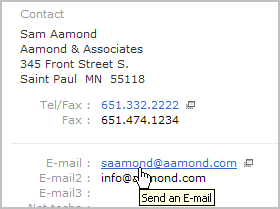
You can start an E-mail directly from the Contact list or Matter list using an E-mail link in its Power View. For the Matter list you will need to peek under the hood of Time Matters and make a tweak, but you are rewarded by significant time savings.
You can send e-mails from Time Matters whether your primary e-mail software is Time Matters, MS Outlook or another program. Doing so allows you to link the e-mails to Contacts and Matters automatically. That makes it easy to quickly see what e-mails have been sent on a Matter or regarding a particular Contact by clicking on the email tab of the corresponding record.
Screenshot from Power View
E-mail links in Power Views let you start an e-mail and link it to a Contact or a Matter very quickly. Just find a Contact or Matter in its list and click on an e-mail link in the Power View. Up pops a new e-mail form already linked. Optionally, you can have the e-mail address filled in automatically, too.
Adding these links requires that you use Windows Notepad (Start | Run | type: notepad | Enter) or another text editor. There are a number of steps, but no single step is hard. The Contact List already has an e-mail link in the Power View: Form View. Try clicking on an e-mail address in this view. (If your Contact Form has been customized this may not work, but you can change that using these instructions.)
To add an e-mail link to the Matter Form Power View, I recommend that you make a backup copy of the Power View and then open the Power View in Notepad. You will need to know where your Power Views folder is. It is usually in a location like: F:\tmw9\data\files, where F: is the network drive where your Time Matters data folder is located. If you are using Time Matters Document Management, you can check your File Locations for the location. Go to: Main Menu | File | Utilities | File Locations. Double-click on TMW.CFG OR TMWE.CFG. The folder entered in the Files Directory field is where your template folder is located.
To backup and open the Power View:
1. Open Windows Explorer by holding down the Windows key (between Ctrl and Alt) and pressing: E.
2. Go to the template folder and open the powerview folder and then the Matter folder.
3. Right-click on Form View(M).htm and select Copy.
4. Right-click on the background of the window
5. Select Paste to create a backup copy of the Power View file, named Copy of Form View(M).htm
6. Right-click on Form View(M).htm and select Open With | Notepad
Next, you need to add an e-mail link. For this you need a customized e-mail field in the Matter Form. For example, you might customize the Custom1 (User1) field to be an e-mail field. Right-click on the field and choose Customize Field. Copy (select and press Ctrl-C) or make a note of its Core Field Name. In this example I use Custom1 with the Core Field Name: MAT:MAT1_04_01.
To add an e-mail link to the Power View that you have open in Notepad or another text editor:
1. Press Ctrl-F for Find. Type or paste: MAT:MAT1_04_01 and press Enter.
2. Press the down arrow key. You will see:
3. Replace this line with:
That's it! Close and reopen the Matter List. When you have the Form View selected as the Power View, you can find an Matter and click on the e-mail link to send an e-mail. The an e-mail form will open with the Client and Matter already filled in.
You have several options for filling in the e-mail address when you use one of these e-mail links. Select your option by going to: Main Menu | File | Setup | General | User Level | Communications | Advanced Options | Send tab. I recommend using the option:
- Prompt to Select email Field
This option lets you either accept the existing e-mail address (the one entered in the Custom1 field in the example, above) or press Cancel and pick a different e-mail address using the Lookup button next to the To: field. In either case the e-mail links to the Client and Matter.
I tip my hat to Jean of New York for inspiring this tip with her question on the CIC Solutions Forum - Time Matters.