Scan and Save Documents
Date: Jun. 29, 2005 Categories: document management , links
Using a scanner, Adobe Acrobat and Time Matters, you can scan documents into PDF format and then save them with Time Matters.
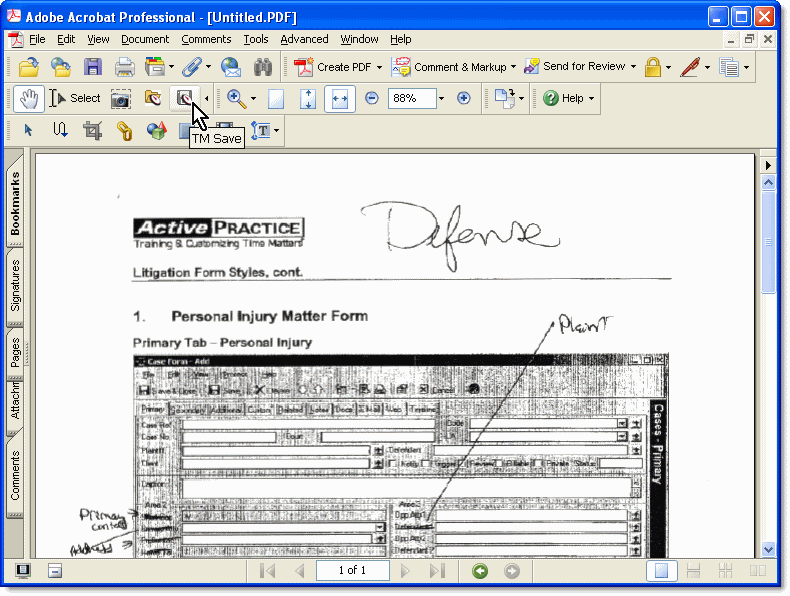
Using a scanner and Adobe Acrobat, you can scan documents into PDF format and then save them with Time Matters. The full-featured Document Management System in Time Matters can link the documents to Contacts or Matters or both. The TM Save button that works in Acrobat makes the saving process very fast. The programs you need to do this are:
- Time Matters version 6 or higher
- Adobe Acrobat Standard or Professional version 5 or higher
The free Adobe Acrobat Reader software cannot scan documents.
Using the TM Save Button in Adobe Acrobat
-
After scanning a document into Acrobat, press the
TM Savebutton. -
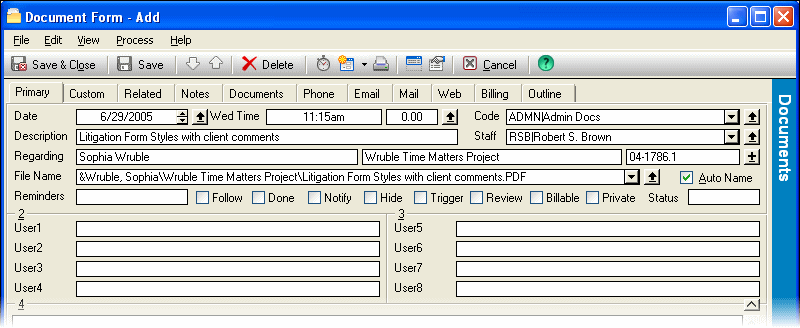
Fill in the Document Form.
The Date and Time fill in automatically. The Staff field can be customized to fill in with the current user's Staff name.
All you need to enter are two things: the Description and the first few letters of the Matter Name.
If you have set up the Document Management System in Time Matters, the File Name field will fill in automatically with the correct folders and document filename. The Document Management System can probably be configured to work with the existing folders on your file server or main computer with little or no modification of the folder names and structure.
If you have not set up the Document Management System, you need to fill in the File Name field. Either type in the drive letter, folder name(s) and filename or press the Lookup button, navigate to the right folder, and type in a filename ending in .PDF.
- Press the
Save & Closebutton to save the scanned document andDocument Form.
You will now be able to go to the Docs tab of the Matter record to open the scanned document in Adobe Acrobat when you need it.