
Productivity Reports
Date: Oct. 12, 2005 Categories: billing , reports
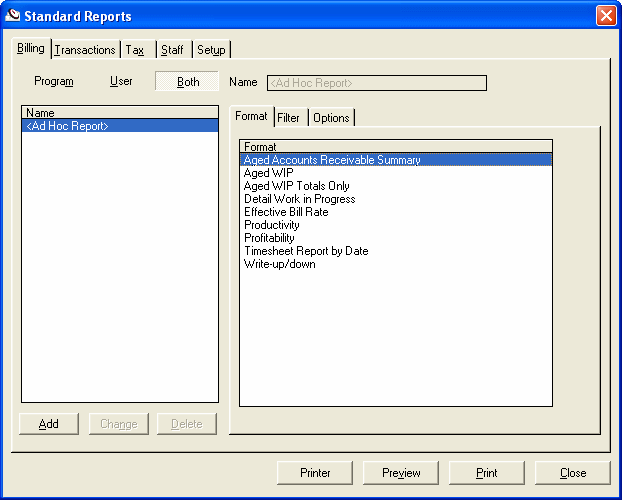
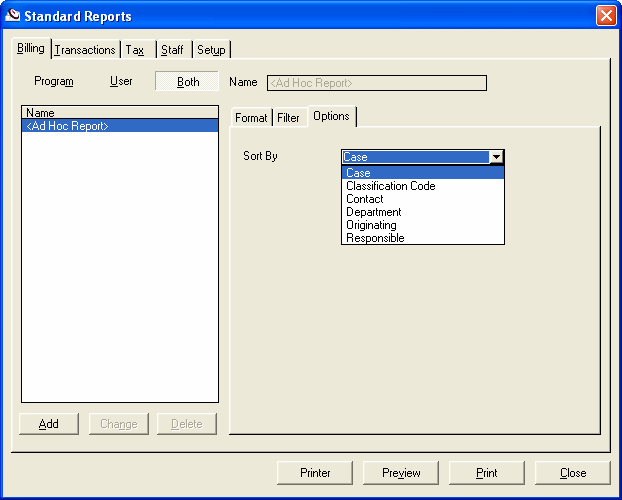
Productivity reports in Billing Matters show the hours worked and the percentage of those hours that were billable. From the Options tab, you can choose to list these figures by Client or Matter or Staff or by one of several other classifications.
To create a Productivity Report:
- From the Main Menu, go to:
Reports | Standard Reports.
1. To list by Staff, click the Staff tab and select Productivity.
OR
2. To list by:
* Billing Code
* Client
* Client and Matter
* Department
* Matter
* Matter No.
* Phase, or
* Responsible
Choose the Billing tab and select Productivity.
Click the Options tab and make your choice from the Sort By drop-down menu.
-
Select the
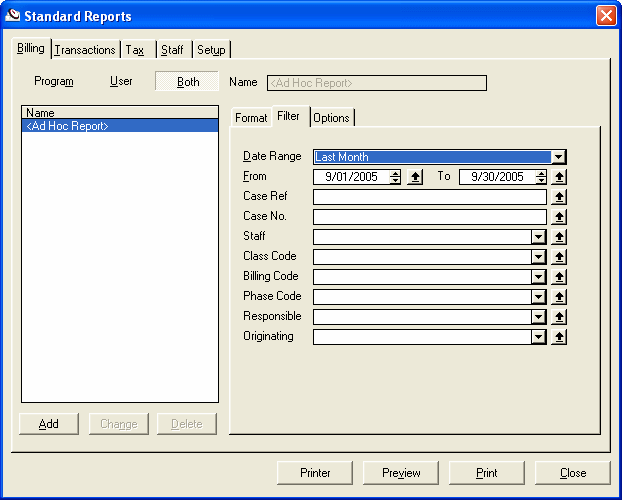
Filtertab. -
For the
Date Range, select a time period from the drop-down menu, normally Last Month. -
For
Responsible, select your site from the drop-down menu. -
Press the
Previewbutton. -
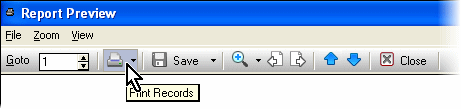
To print the report, press the
Printericon.
These Productivity Reports can assist you in identifying the Clients, Matters and Staff that are the biggest sources of billable hours. They also show you which ones are generating the most non-billable time. By watching these numbers from month to month, you can manage your practice more effectively.