
Absolute Coolest Time Matters Instant Documents
Date: Nov. 29, 2019 Categories: document creation , document management
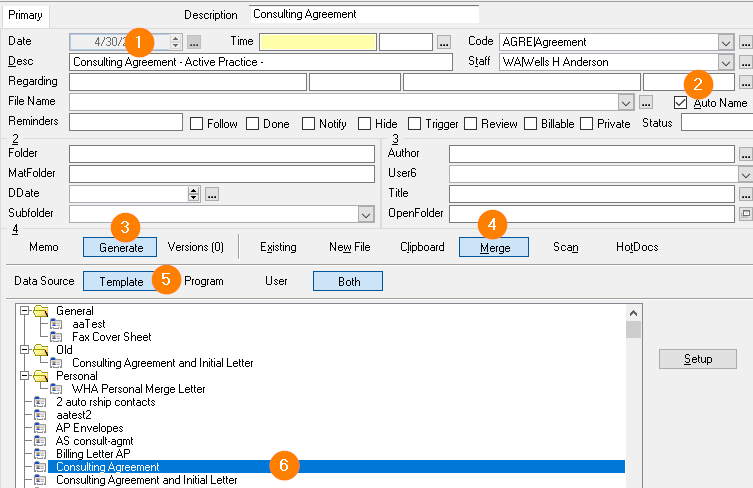
Pressing a couple of buttons and instantly creating a document gives me a disproportionate amount of pleasure. Recently a client reminded me of the absolute coolest way to create a document instantly, along with automatically saving it with a Time Matters Document record.
Setting up an absolute coolest instant document involves a set of interconnected Time Matters features:
-
Go to: Main Menu / File / Setup / Templates / Merge
-
Create Merge Template for Contacts or Matters, taking care to check the box on the Files tab labeled:
Prompt for File Name When Merging -
Create an AutoEntry Form for Documents:
Main Menu / File / Setup / Templates / AutoEntry Form / Document (drop-down)
The Document AutoEntry Form needs these key components:
-
Description , which will be the start of the Document’s filename.
-
Check the Auto Name box. Your Autonaming is configured in Program Level Setup / Forms / Documents
-
Click the Generate button.
-
Click the Merge button.
-
After choosing the Data Source (not shown) as Contact or Matter, click the Template button.
-
In the Template pane, choose the Merge Template you created earlier.
To use the absolute coolest Time Matters instant document:
-
Click on a Matter in the Matter List or a Contact in the Contact List.
-
Click the Add Document button on the Time Matters Main Toolbar. (If you don’t have one, just press Ctrl-Shift-D, or add the button by right-clicking anywhere on the Main Toolbar and double-clicking Add Document.)
-
Add to the Description in order to give your document a name consistent with your naming convention, for example, add the client’s name to “Legal Service Agreement with.”
-
At the top of the Document Form, click the AutoEntry Form icon, a form icon with a sparkle, or press Ctrl-A.
-
Click the Merge Template you want. (Typing the first letter zips you down to it or close to it.)
-
Click the Template tab and the Merge button. (Or for ubergeeks, press Right-Arrow, tab 5 times and press Enter.) Click OK , OK. Edit your document if you want to and save it.
-
Back in Time Matters, click Save & Close.
Voila! Your document is created, filled in with information from the Client or Matter, named, linked to the Contact and/or Matter, profiled, and saved to the correct folder.